Image Color Changer: Change Color of Image Online
Easily change color of image files in your browser. This online image color changer lets you replace colors on clothes, objects, and backgrounds while keeping the original shadows, highlights, and textures intact.
See the Transformation: Interactive Before & After
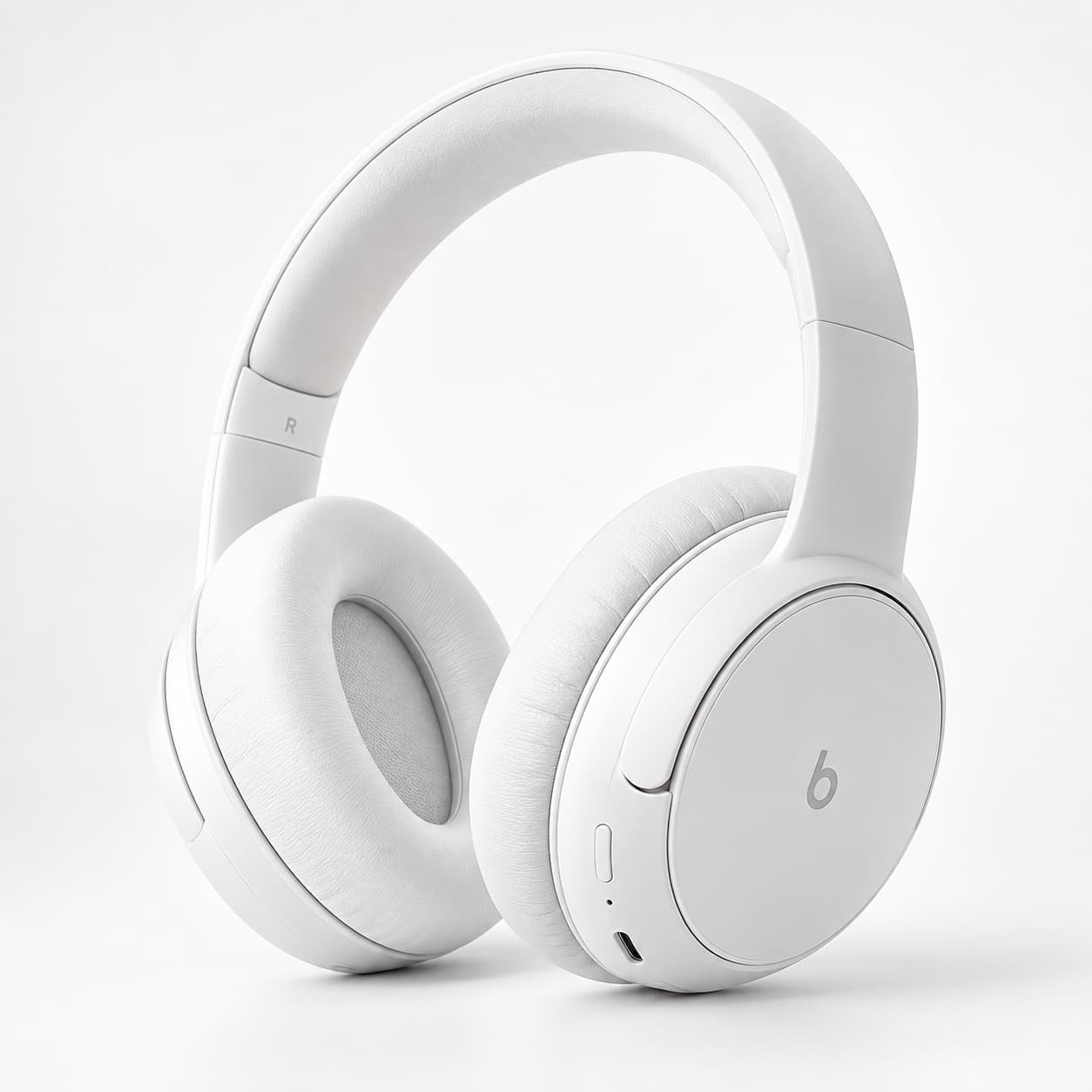
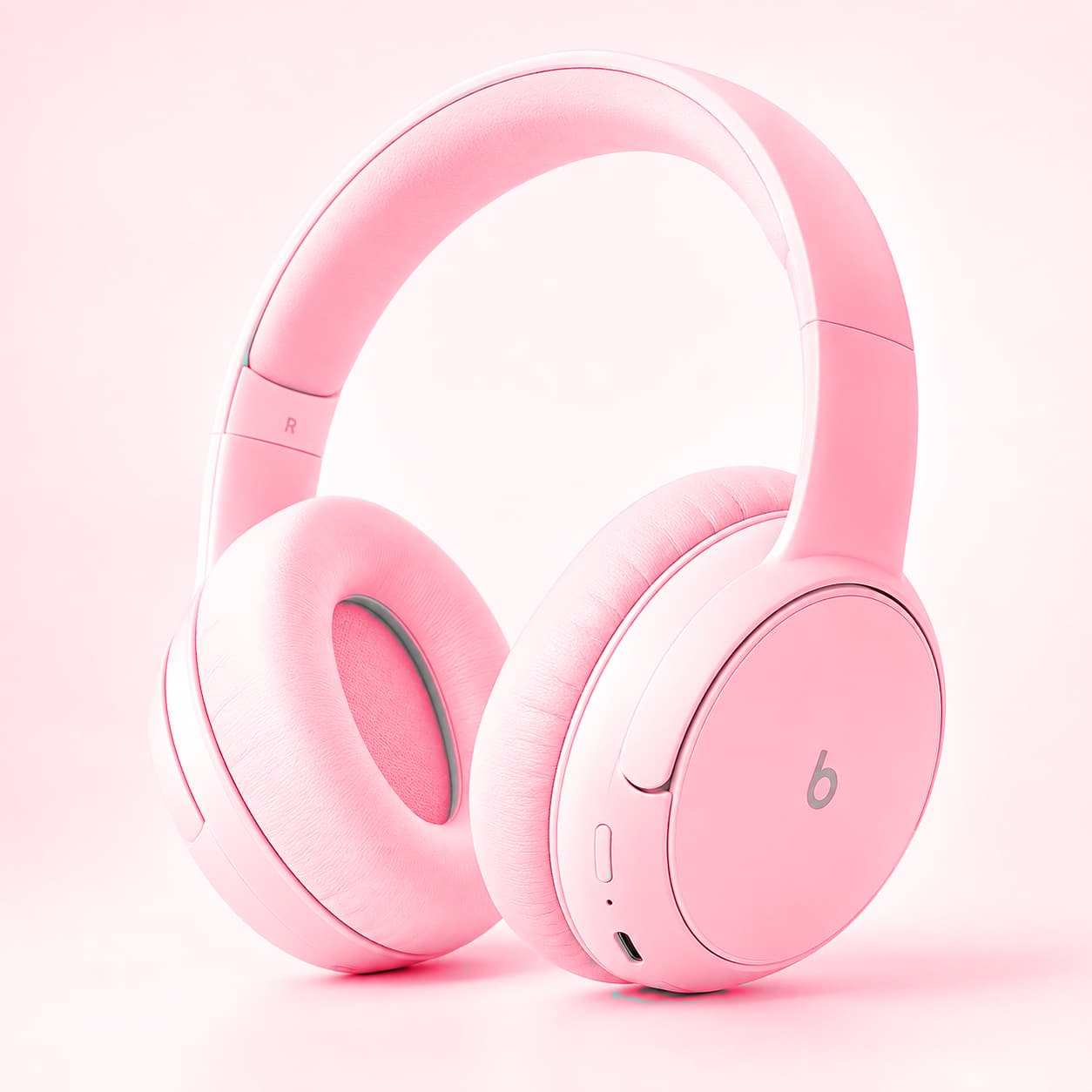
Drag the slider handle sideways to compare how color redirection preserves depth. Notice that specular highlights and shadow folds remain completely unblocked on the recolored side:
Drag the slider sideways to compare the original photo with the recolored version.
Why Use This Online Image Color Changer?
Most basic photo editors simply paint a flat layer of color over your picture. That usually looks fake because real objects have wrinkles, shadows, and shiny spots. When you change color of image items here, the tool blends your new color directly into the original lighting.
Whether you want to recolor a shirt, test a new hair shade, or change product colors for an online store, this photo color changer gives you clean results without spending hours cutting out paths or selecting complex masks.
Simple Tools to Change Color of Image Items
Paints inside the lines automatically. Touch the object you want to recolor, and the brush stays within its borders even if your hand slips into the background.
Tap any solid area or uniform fabric to change its color immediately. You can raise or lower sensitivity to grab smaller or larger areas.
Made a mistake? This eraser does not leave blank white holes. It simply brushes back the original photo so you can fix mistakes without starting over.
Choose how your new shade combines with the photo. The default Color mode keeps folds and fabric texture clear and believable.
How to Change the Color of an Image Step by Step
1
Open Your Picture
Click Open or drag and drop your photo directly into the work area. Your photo stays clear and sharp at its full size.
2
Pick a Color
Choose a color from the quick palette, pick a custom shade, or type in an exact color code.
3
Set Sensitivity and Brush Size
Use low sensitivity for specific small spots, or increase it to let the color cover deeper wrinkles and shadows.
4
Paint or Tap to Recolor
Brush over the part of the photo you want to change. The smart brush automatically sticks to the edges of that object.
5
Clean Up Any Overlap
If color touched buttons, skin, or other items by mistake, switch to the restore eraser and paint them back to normal.
6
Download Your Image
Click Export to save the finished picture straight to your device in full quality.
How to Recolor Difficult Items: Dark Blacks and Bright Whites
One of the hardest tasks in photo editing is trying to change the color of something that is almost pitch black or bright white. Because black items absorb most light and white items reflect nearly all of it, simple tinting can sometimes look washed out. Here is how to handle them cleanly:
Recoloring White or Light Objects: White surfaces have plenty of brightness but very little color data. To turn a white shirt red, blue, or green, change the blend mode dropdown to Multiply. This forces your new color to sink into the fabric folds and natural shadows without turning the whole object into a flat gray sticker.
Recoloring Dark or Black Items: Deep black clothes or cars have deep shadows that hide texture. If you try to paint a light color over pure black using standard modes, it can look muddy. Instead, switch to Screen or Soft Light mode and slightly raise the color strength slider. This pulls out the wrinkles and stitches hidden in the dark areas and gives the new color realistic body.
Protecting Metal Parts and Reflections: If you are recoloring a leather jacket with metal zippers or sunglasses with chrome frames, you do not want the metal to turn green or purple. Paint freely over the area first, then grab the Restore Eraser with a small brush size to quickly run over the metal parts. This brings back the clean original shine in seconds.
Common Ways People Use This Image Color Changer
Online Stores and Products: Instead of photographing every shirt, shoe, or bag in every single color, sellers photograph the item once and use this image color changer to show customers all the other available colors.
Portraits and Social Media: Change the color of clothes in photos, try out different hair tones, or tweak background colors so your pictures match a specific feed style.
Home and Furniture Ideas: Test how a sofa, wall, or car would look in another color before spending money on real paint or re-upholstery.
Quick Tip for Natural Photos
Real objects are rarely pure neon bright. If a recolored shirt looks too intense, lower the color strength slider slightly to around 80% or 90% so the original lighting shows through naturally.