Color Picker from Image: Extract Colors from Photos Effortlessly
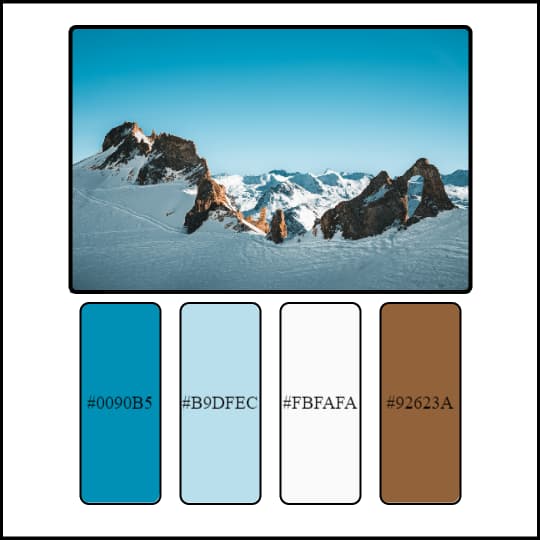
Welcome to our free online Color Picker from Image tool. Whether you're a graphic designer, web developer, artist, or just someone looking to capture the perfect hue from a photograph or illustration, our tool makes it incredibly simple. Stop guessing colors or wrestling with complex software. Simply upload your image and instantly extract colors, build palettes, and get the exact color codes you need (HEX, RGB, HSL).
How to Use the Color Picker from Image Tool
Getting colors from your images is straightforward and intuitive. Follow these simple steps:
- Upload Your Image: Click the "Drag & Drop or Click to Upload Image" area or drag your image file directly onto it. We support popular image formats like JPG, PNG, and GIF.
- Pick Colors Manually: Once the image loads, move your mouse cursor over the image. A magnifying glass (if enabled) and a color preview box will show you the exact color under your cursor. Click on any pixel to add that specific color to your palette below.
- Extract Colors Automatically: Don't want to pick manually? Use the "Extract Colors" button. Choose an extraction method (Dominant, Vibrant, or Muted) from the tabs above the button, then click the button to automatically generate a palette based on your selection.
- Manage Your Palette: The extracted or manually picked colors will appear in the Color Palette section. You can see the color swatch, HEX code, RGB, HSL (by changing the display format), and the color name. Each color item shows a WCAG contrast accessibility score against white/black text.
- Copy Color Codes: Click the copy icon () next of any color code in the palette to quickly copy it to your clipboard in the currently selected format (HEX, RGB, or HSL).
- Remove Colors: Use the trash bin icon () to remove individual colors from your palette.
- Sort Colors: Click the "Sort" button () to organize your palette by Hue, Lightness, and Saturation.
- Export Your Palette: Once you have your desired colors, click the "Export" button (). You can export the palette as JSON, CSS Variables, SCSS Variables, or as a beautifully designed image.
Key Features
- Manual Color Picking: Precisely select colors by clicking anywhere on your image.
- Automatic Palette Generation: Quickly extract dominant, vibrant, or muted colors with one click.
- Magnifier Tool: Get pixel-level precision when picking colors manually. Toggle on/off.
- Real-time Color Preview: See the color details (Hex, RGB, HSL, Name) of the pixel under your cursor instantly.
- Multiple Output Formats: View and copy colors in HEX, RGB, HSL, or even their recognized name.
- Color Naming: Automatically identifies and names common colors.
- WCAG Contrast Checker: Get an instant check of the color's contrast ratio against white and black for accessibility.
- Interactive Palette: Add, remove, and sort colors easily within the generated palette.
- Flexible Export Options: Download your palette in multiple developer-friendly formats (JSON, CSS, SCSS) or as a shareable image.
- User-Friendly Interface: Clean, intuitive design that works on desktop and mobile devices.
- Dark Mode: Toggle between light and dark themes.
Frequently Asked Questions (FAQ)
What is a Color Picker from Image tool?
A Color Picker from Image is an online utility that allows you to upload a picture (like a JPG, PNG, or GIF) and then extract or identify the colors present in that image. You can usually click on specific points to get the color code (like HEX, RGB, or HSL) of that pixel, or use features to automatically generate a palette of prominent colors from the whole image.
How accurate is the color picking?
When you manually click or hover over a pixel, the tool reads the exact color data from that specific pixel in the loaded image. The automatic extraction methods analyze groups of pixels to find representative colors. Accuracy depends on the image quality and resolution, but manual picking gives you the precise color data of the point you select.
What image formats does this tool support?
Our tool supports standard web image formats, including JPEG (.jpg, .jpeg), PNG (.png), and GIF (.gif). Ensure the file is not excessively large, as processing time may increase.
Can I extract multiple colors from one image?
Yes! You can manually pick as many colors as you want by clicking on different parts of the image. Additionally, the automatic extraction methods (Dominant, Vibrant, Muted) are designed to identify and present a selection of key colors found within the image.
What is the difference between Dominant, Vibrant, and Muted extraction?
These are different ways to analyze the image and find colors:
- Dominant: Extracts the most frequently occurring colors in the image. These are the colors that statistically appear the most.
- Vibrant: Looks for colors that have high saturation and a moderate lightness. These are often the most 'lively' or intense colors.
- Muted: Identifies colors with lower saturation, often appearing more subdued or grayish.
Is my uploaded image kept private or stored?
No. Your image is processed directly within your browser and is NOT uploaded to our servers or stored in any way. We prioritize your privacy and data security.
What is WCAG contrast accessibility?
WCAG (Web Content Accessibility Guidelines) provides recommendations for making web content more accessible. Color contrast is a key aspect, ensuring that text and other elements are sufficiently distinguishable from their background, especially for users with visual impairments. Our tool shows the contrast ratio against pure white (#FFFFFF) and pure black (#000000) and indicates if it meets AA or AAA standards for normal and large text sizes, which helps you make informed design choices.
Our Color Picker from Image tool is designed to be a fast, reliable, and free solution for all your image color needs. Start exploring the colors in your photos today!